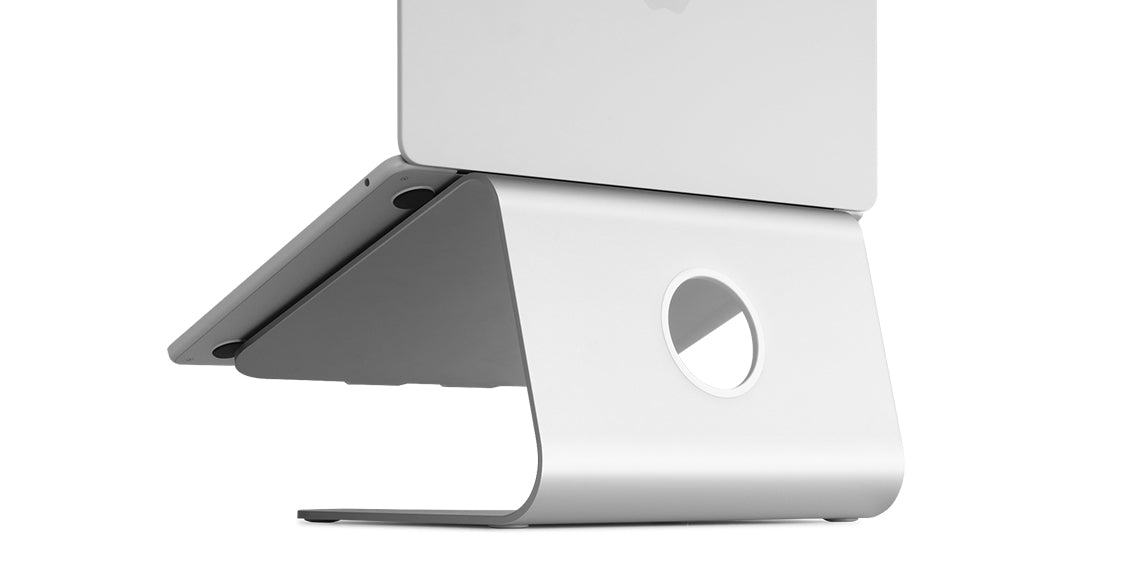
In a small apartment, the monitor setup is not just a comfort detail. It decides whether the desk can also hold homework, bills, a baby monitor, a lunch plate, or a craft project at 4 p.m.
The basic choice is usually between a monitor riser, which lifts the screen from below, and a monitor arm, which holds the screen from the back of the monitor and clamps or bolts to the desk. Both can work. The better option depends less on style and more on your desk edge, monitor back, cable slack, wall clearance, and how often the workspace changes users.
This guide uses manufacturer documentation for the Ergotron LX Desk Monitor Arm, including part 45-241-026, as a concrete example of the measurements and safety checks that matter for any arm purchase. If you are comparing this approach with a simpler stand, see our related Amazon Basics adjustable monitor stand riser review.
The quick decision: arm or riser?
| Choose this | Best small-home fit | Main trade-off |
|---|---|---|
| Monitor riser | Rental desks, glass or thin desks, shared family stations, no-VESA monitors, simple laptop-and-monitor setups. | It raises the monitor, but usually does not free as much surface or offer much depth adjustment. |
| Monitor arm | VESA-compatible monitors, sturdy desks, compact workstations where keyboard, papers, and family items compete for space. | It needs careful compatibility checks and can wobble, sag, or hit the wall if installed without planning. |
For many apartment households, the simplest rule is this: use a riser when you mainly need height, and use an arm when you need height plus desk surface, depth control, or the ability to move the monitor for different users.
Why monitor arms help in small apartments
A monitor arm can clear the large factory monitor base from the desktop. That matters on a 36-inch writing desk, a bedroom vanity turned workstation, or a dining table that has to reset before dinner.
An adjustable arm can also bring the monitor closer for focused work, push it back for writing or school papers, rotate some displays between landscape and portrait, and help different adults share the same desk. Manufacturer specifications for the Ergotron LX list a 13-inch height range, up to 25 inches of extension, 360-degree pan, and VESA 75 x 75 mm or 100 x 100 mm compatibility for monitors within the rated weight range. Ergotron notes that a monitor over 20 pounds may reduce the available vertical travel by up to 4.5 inches, and a monitor deeper than 3.5 inches may diminish capacity.
That flexibility is the appeal. The caution is that a monitor arm is not a magic space saver in every room. The folded arm still needs somewhere to go, and on a desk pushed tight against a wall, the arm may force the screen farther forward than expected unless the base is positioned thoughtfully.
Why a riser is sometimes the smarter choice
A monitor riser is less adjustable, but it is also less demanding. It does not need a VESA pattern. It does not clamp to the desk edge. It does not add twisting force to one back corner of a small desk. For a family desk that gets bumped, shared, and cleared often, that simplicity has value.
A riser may be the better fit if:
- Your monitor does not have exposed 75 x 75 mm or 100 x 100 mm VESA mounting holes.
- Your desk has a glass top, hollow-core top, rounded edge, back apron, drawer rail, or decorative lip that prevents a secure clamp.
- You rent and do not want to drill a grommet hole.
- The desk moves between rooms or gets folded away.
- Children use the same surface for homework and you want fewer adjustable joints to fiddle with.
The ergonomic goal is similar either way: the monitor should sit where you can look at it without craning your neck. OSHA’s computer workstation guidance generally places the top line of the screen at or below eye level, with the screen typically 20 to 40 inches from the eyes. A riser can achieve that just fine if the needed height is modest.
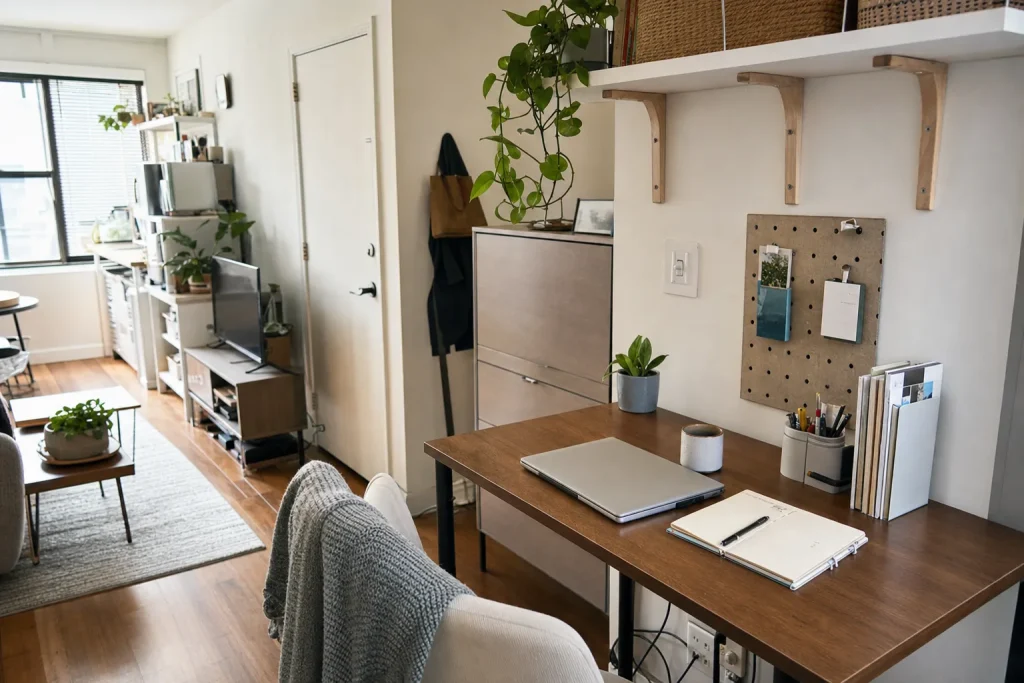
Fit checklist before choosing a monitor arm
1. Confirm the monitor’s VESA pattern
Most monitor arms need mounting holes on the back of the monitor. The common patterns for single-monitor desk arms are 75 x 75 mm and 100 x 100 mm. The Ergotron LX 45-241-026 documentation lists both patterns under VESA FDMI MIS-D compatibility.
Before ordering an arm, inspect the monitor’s actual back panel and find its model-specific specifications. Some monitors hide the holes behind the factory stand plate. Others need a brand-specific adapter. Some slim or budget monitors do not support arm mounting at all.
2. Check the monitor weight without the stand
Arm weight ratings usually refer to the load attached to the arm, not the monitor plus its original desk stand. Ergotron lists the LX capacity at 7 to 25 pounds. A monitor below the minimum can float upward or resist staying down; a monitor above the maximum can sag or exceed the manufacturer’s safe range.
If you cannot find the monitor’s weight without the stand, look for the official product specification sheet from the monitor brand. Do not rely on diagonal size alone. Ergotron’s own literature treats 34 inches as an approximate screen-size guide and notes that weight capacity is the controlling limit.
3. Measure the desk edge, not just the desktop
Clamp compatibility is where small apartment desks often fail. The Ergotron LX manual shows clamp settings for very thin surfaces and for surfaces up to 2.4 inches thick, plus a grommet option for a hole 0.31 to 2 inches in diameter and a desk thickness up to 2.25 inches.
Those numbers are only part of the story. Also check what is under the back edge:
- Is there a metal support bar?
- Is there a drawer, apron, cable tray, or modesty panel in the clamp’s path?
- Is the back edge rounded, beveled, or too shallow for the clamp pad?
- Is the desktop solid enough to handle concentrated pressure?
For hollow-core, particleboard, folding, or very lightweight desks, a riser may be calmer than trying to make a clamp behave. If an arm is still the best option, a grommet mount or reinforcement plate may distribute force better, but drilling and modification are not always rental-friendly.
4. Plan for the wall behind the desk
Many apartment desks sit directly against a wall because there is nowhere else for them to go. A monitor arm can complicate that. Articulating arms often fold behind or to the side of the screen, so the monitor may not sit flush against the wall even when pushed back.
Before you commit, sketch the desk from above. Mark the clamp position, the monitor center, and the wall. If the arm has up to 25 inches of reach, that does not mean your small desk can use all 25 inches cleanly. You may need to offset the clamp to one side so the arm folds beside the monitor rather than straight into the wall.
5. Leave real cable slack
Monitor arms make cords move. That means HDMI, DisplayPort, USB-C, power, webcam, and speaker cables need enough slack for the full range you actually use. The LX manual shows cables routed along the underside of the arm with ties, but the important small-home lesson is not to cinch everything tight.
Leave a gentle service loop near the monitor and another near the desk drop. If the cable pulls when the monitor rises, rotates, or comes forward, the setup is not finished. Tight cables can tug ports, lift power bricks, or make the arm feel worse than it is.
Common wobble, sag, and drifting problems
The monitor slowly drops
This usually points to a load or lift-tension issue. Confirm the monitor is within the arm’s rated range, then follow the manufacturer’s lift adjustment procedure. The Ergotron LX manual states that the arm should be adjusted after installation and again any time equipment weight changes.
The monitor floats upward or will not stay low
This can happen when the mounted load is too light for the spring setting, or below the arm’s supported range. If the monitor is within the rated range, reduce lift strength according to the manual. If it is under the minimum weight, a riser or a lighter-duty arm is usually a better fit.
The screen tilts downward
Tilt droop often needs a separate tilt adjustment, not more clamp pressure. Use the specified adjustment point and tool. The LX manual warns not to remove certain adjustment screws and not to overtighten fasteners, because doing so can damage equipment.
The whole setup wobbles when typing
Some movement is normal on lightweight desks, especially standing desks and narrow apartment desks. But obvious wobble can come from a flexible desktop, loose clamp, monitor weight near the top of the arm’s range, or a long reach position that acts like a lever. Pull the monitor closer to the arm’s base, recheck the clamp, and consider whether the desk itself is the weak link.
Safe maintenance for a family apartment
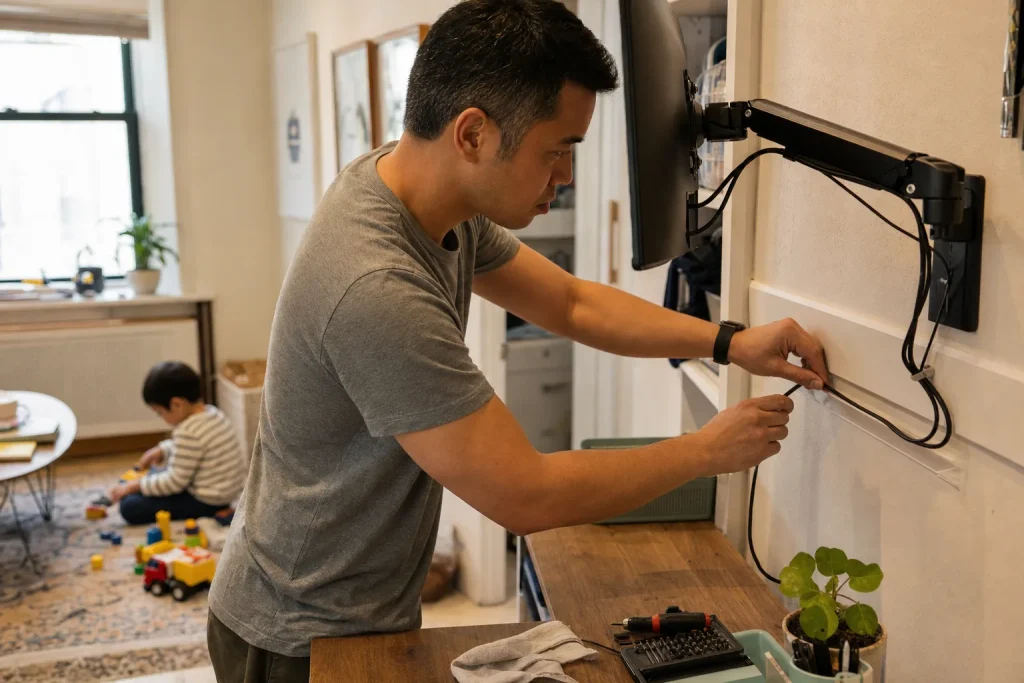
A monitor arm is a moving support, so it deserves occasional attention. Add it to a simple seasonal home check, especially if the desk is shared with children or moved for guests.
- Check the clamp or grommet connection. Make sure the base has not shifted and the desktop has not crushed, cracked, or bowed.
- Inspect the monitor plate. Confirm the VESA screws are secure and the monitor is sitting flat against the plate or adapter.
- Test the movement slowly. The monitor should move smoothly and stay where placed. If it drifts, adjust tension according to the manual.
- Do not let children hang from the monitor or arm. Treat it as equipment, not a handle.
- Keep cords managed but not tight. Cords should not dangle where small children can pull them, but they also need slack for arm movement.
- Use the removal warning seriously. The LX manual warns that the arm mechanism can move upward quickly when attached equipment is removed, so the arm should be moved to its highest position before removing the monitor.
If the desk itself is tall, narrow, top-heavy, or near young children, think beyond the monitor. The Consumer Product Safety Commission recommends anchoring furniture and appliances that can tip. A monitor arm will not solve an unstable desk or storage unit.
Small-space layout examples
A 36-inch bedroom desk
A riser is often enough if the monitor only needs a few inches of lift and the keyboard can tuck underneath. Choose an arm only if the desk edge is sturdy and you need to clear the factory monitor base to make room for notebooks or a laptop.
A dining table that becomes a work desk
A clamp arm can work if the table edge is compatible, but it may be visually intrusive and inconvenient when meals return. A riser or portable laptop stand is easier to remove. A grommet mount is usually not realistic unless the table is dedicated to work.
A wall-facing nook
Wall clearance matters more than maximum reach. Offset the arm base if needed, and test whether the monitor can sit at a comfortable viewing distance without the arm pressing into the wall. A shallow riser may be better when every inch behind the screen matters.
A shared parent-and-child homework station
A monitor arm can adapt to different heights, but it also invites adjustment. If the child mainly needs a stable surface for schoolwork, a simple riser with storage underneath may be more predictable. If adults use the same desk for long work sessions, an arm may earn its place as long as cords and clamp access are controlled.
Before you buy the Ergotron LX arm
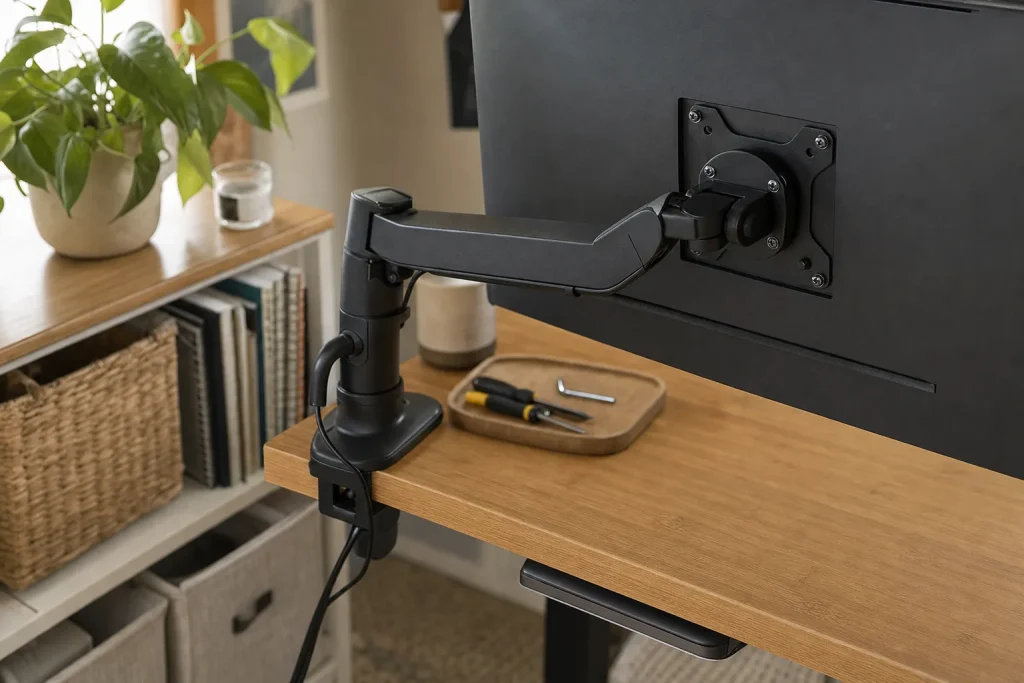
Three numbers to write down: your monitor’s weight without its stand (the LX is rated for 7–25 lb), the desk thickness at the mounting edge (the standard clamp fits 0.4–2.4 in), and the hole spacing on the back of the monitor (75 × 75 or 100 × 100 mm). Also check for an apron or drawer under the edge and leave room for the arm to fold behind the screen. A passing number alone does not make a weak or obstructed desk safe to clamp.
The Ergotron LX Desk Monitor Arm is one example for a compatible, sturdy desk. The manufacturer identifies the 45-241-026 variant in its documentation. If the fit checks above pass, open the Amazon listing in Sources below (affiliate link). Before ordering, confirm that the live listing names the LX desk mount, the variant and included clamp or grommet parts you need, and that your monitor falls within its VESA and weight range. We have not hands-on tested this arm or verified live price or availability.
As an Amazon Associate, Small Home Rhythm earns from qualifying purchases at no extra cost to you.
Bottom line
In a small apartment, a monitor arm is best when the desk is sturdy, the monitor is VESA-compatible and within weight range, and you need the desktop to do more than hold a screen. A riser is best when the setup needs to be simple, portable, rental-safe, or child-friendly.
Before buying an arm, measure the monitor, the desk edge, the space behind the desk, and the cable path. Those four checks prevent most of the frustrating small-space problems: sag, wobble, blocked clamps, wall collisions, and cords stretched tight across a family workstation.
Frequently Asked Questions
Is a monitor arm better than a monitor riser for a small desk?
A monitor arm is better when you need to free desktop space and adjust height, depth, or rotation. A riser is better when you only need a modest height lift or your desk is fragile, thin, glass-topped, shared, or not clamp-friendly.
How do I know if my monitor works with a monitor arm?
Check for VESA mounting holes on the back of the monitor, usually 75 x 75 mm or 100 x 100 mm. Then confirm the monitor’s weight without its original stand falls within the arm manufacturer’s rated range.
Can I use a monitor arm on an apartment desk pushed against a wall?
Sometimes, but plan carefully. Articulating arms need room to fold behind or beside the monitor. If the desk is tight to the wall, offsetting the clamp can help, but a shallow riser may work better in very tight nooks.
Why does my monitor arm sag after installation?
Sagging usually means the monitor is too heavy, the lift tension needs adjustment, or the tilt joint needs adjustment. Follow the manufacturer’s manual and avoid removing adjustment screws or overtightening fasteners.
Is a grommet mount better than a clamp mount?
A grommet mount can be more secure on some desks because it bolts through a hole, but it requires a compatible hole and may not be rental-friendly. A clamp is easier to install and remove, but it needs a sturdy, accessible desk edge.