
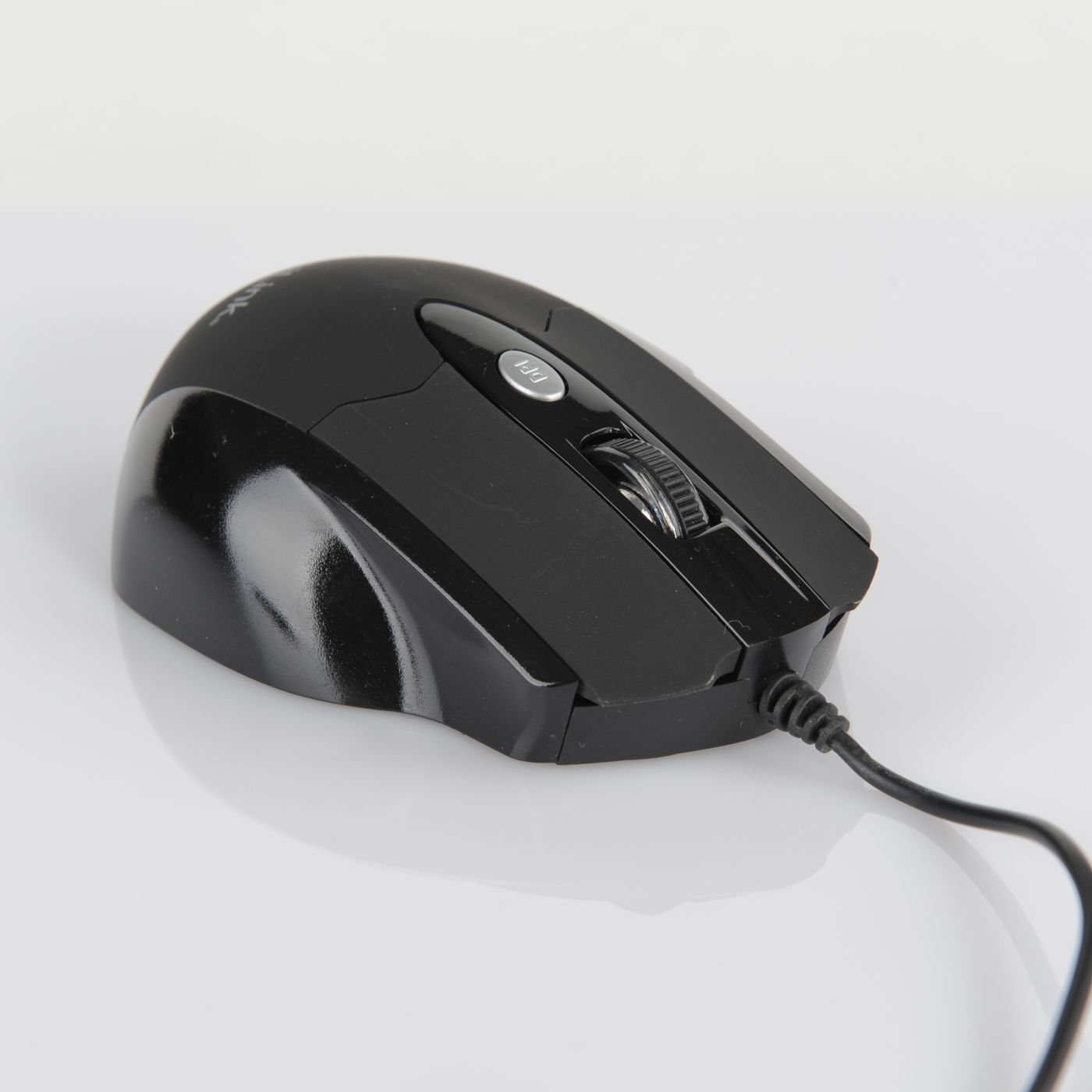
A computer mouse collects contact marks around the shell, buttons, wheel, and underside. Before choosing a cleaner, identify the exact device and its manufacturer’s instructions. The useful household task is to remove ordinary external dirt while keeping care separate from a repair or an unsupported attempt to restore a worn coating.
The Houzz fall 2026 report gives context for homes shaped around real daily routines. Caring for a frequently handled desk device is one practical application. This guide does not claim a disinfecting result, a measured performance improvement, or a method suitable for every mouse.
Identify the device before disconnecting it
Find the maker and model information using the device, its packaging, or its retained documentation. Check whether it is wired, uses removable batteries, or has an internal rechargeable battery. Those details affect the manufacturer’s preparation instructions. Do not infer the power arrangement from a photograph of a similar-looking device.
Plan a small pause in work so the mouse can remain out of service for the complete care process. Save or finish the task you are doing before changing the setup. If the device belongs to a workplace or another person, follow the applicable device-care arrangements rather than introducing an unapproved cleaning product to shared equipment.
Put power and connections into the required state
Follow the actual manufacturer’s directions for disconnecting or switching off the mouse and for handling removable batteries where applicable. Keep a detachable receiver or cable in an identified place. Do not detach an internal component or open the housing simply because you are preparing the exterior for cleaning.
For a shared desk, make the pause clear to the next user. A mouse left beside a cleaning cloth may otherwise be reconnected before its care is finished. If another device temporarily takes its place, keep the identities and receivers distinct so an ordinary clean does not become a search for the correct connection afterward.
Separate dirt from changes in the finish
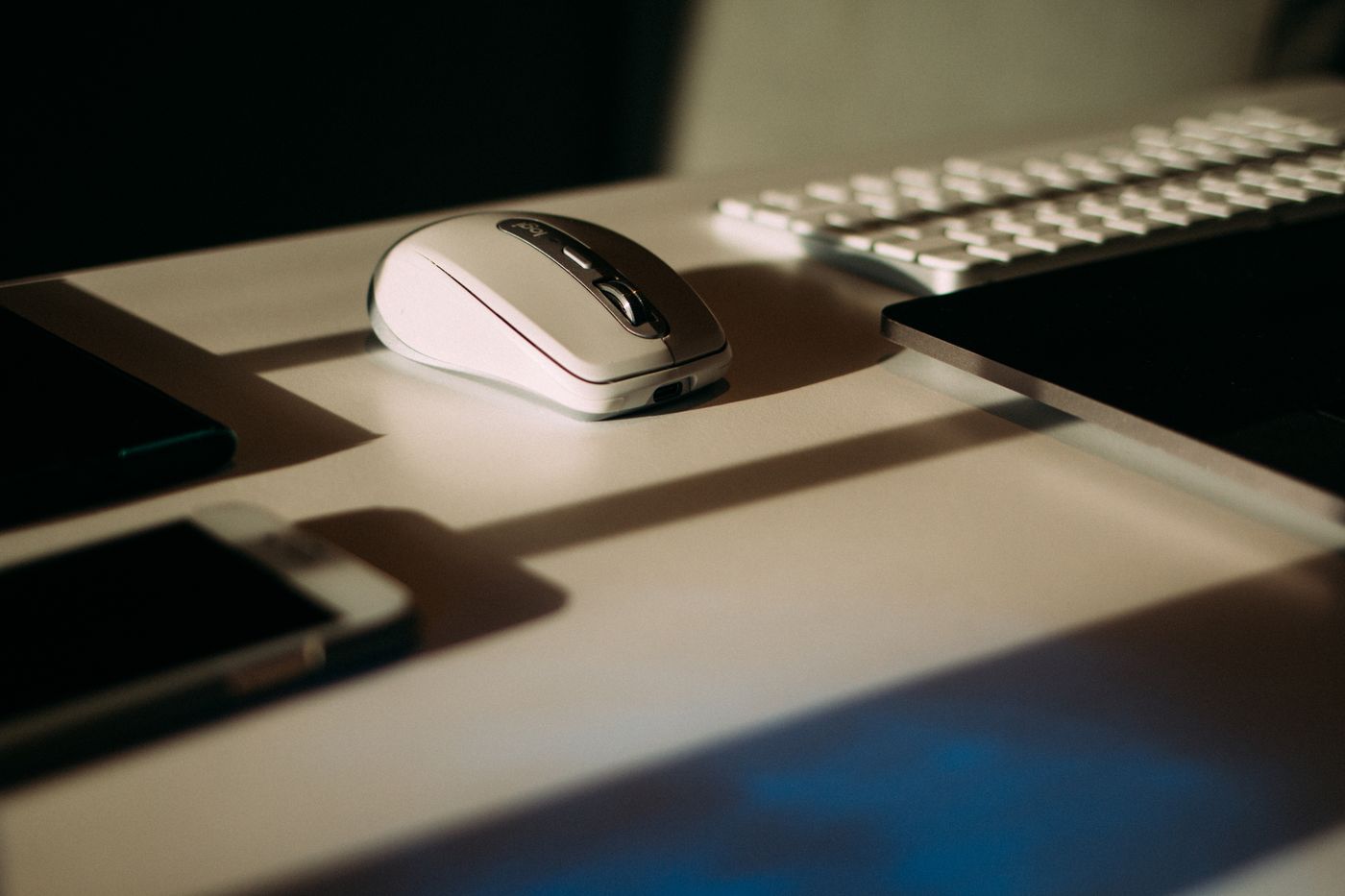
Inspect the shell in reasonable light. Note the ordinary contact areas and any printed markings, textured coatings, or separate soft components. A shiny patch from use, a worn coating, or a scratch can remain after appropriate cleaning. Repeatedly applying a stronger product may change the surface without solving the original appearance.
If the finish is already deteriorating or the device has suffered a spill, consult model-specific support guidance. This article’s external-care routine does not prescribe a repair. Keep uncertain cases separate from the simple task of removing loose ordinary debris and wiping permitted surfaces.
Read the maker’s actual cleaning guidance
Microsoft’s mouse-care page describes a lightly dampened lint-free cloth or cotton swab with mild soap and water for specified external areas of its devices. Treat that as Microsoft guidance for the relevant products. It should not become an automatic instruction for every other manufacturer’s coating or construction.
Logitech publishes its own device-cleaning recommendations. Consult those instructions for the actual Logitech product and follow any model-specific differences. Do not choose a cleaner simply because it is marketed for electronics generally. The mouse’s material and manufacturer limits still matter, including the way any permitted liquid is applied.
Keep moisture and tools under control
Use the permitted method and amount of moisture according to the actual instructions. Where the maker directs application to a cloth, follow that direction rather than spraying the device. Keep the surrounding desk clear enough that the cleaning item does not touch papers, a keyboard, or another surface whose care requirements differ.
Use an appropriate clean tool for accessible areas. Do not force a pointed object into a button gap or assume that a stiff brush is suitable for every texture. The electronics-cleaning brush review considers a separate tool choice. Owning that tool does not override the device maker’s instructions about where or how it may be used.
Treat the wheel and button edges as specific surfaces
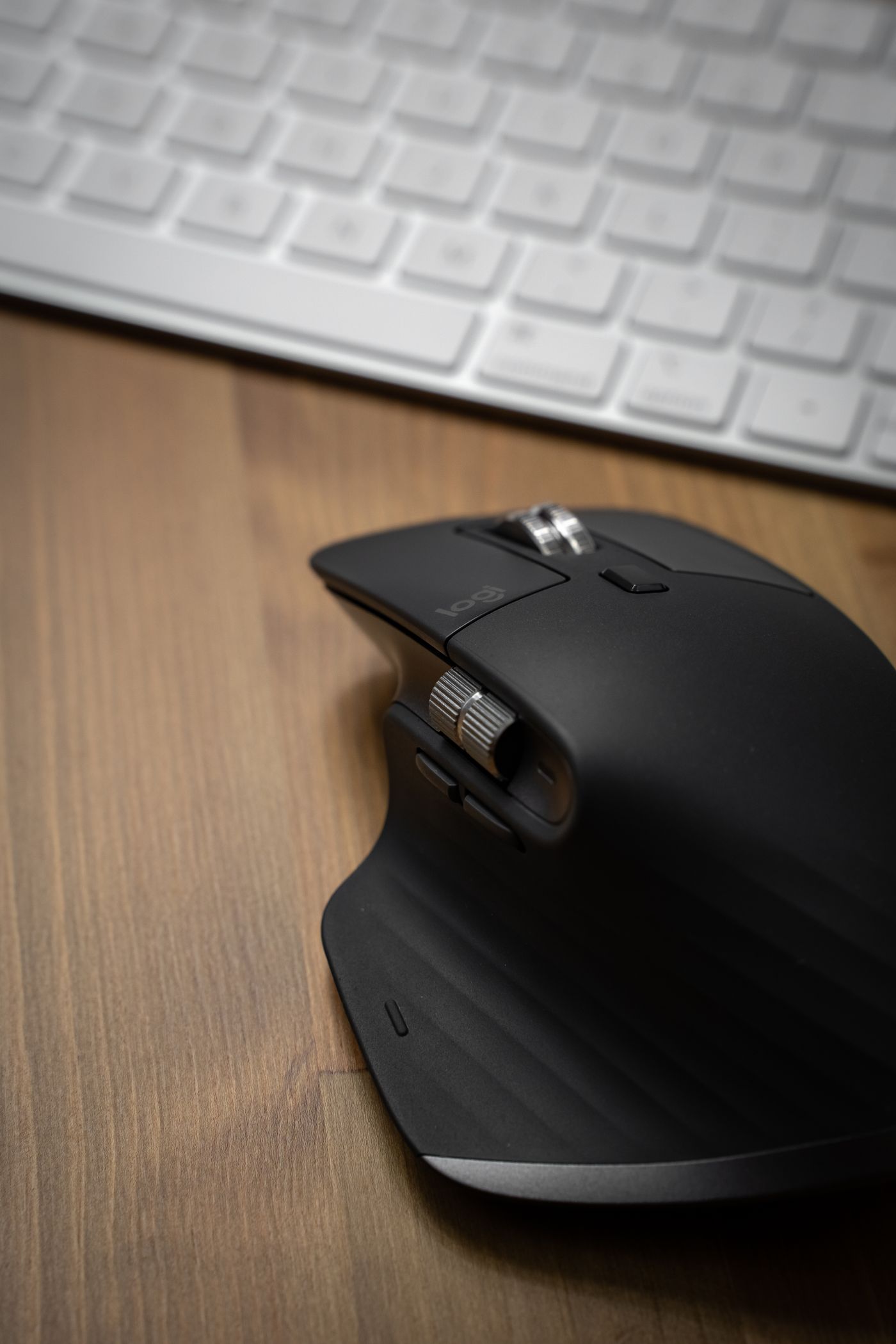
Check the areas that remain visible and accessible without dismantling the mouse. Follow the maker’s method for the wheel and nearby external edges. Work gently enough to preserve markings and movement. Avoid pulling a button upward or manipulating the wheel beyond its intended operation in an attempt to reach an unseen area.
If a control continues to behave incorrectly after permitted care, record the actual symptom and consult the relevant troubleshooting guidance. A physical click problem or an intermittent connection may have a cause beyond surface dirt. Escalating the cleaning strength is not a substitute for identifying that problem.
Follow separate guidance for the sensor and underside
The underside contains different features from the broad upper shell. Identify the optical opening, glide surfaces, labels, and any battery cover on the actual device. Clean only as the maker permits. Do not peel a glide pad or label to reach underneath unless the manufacturer’s appropriate service instructions specifically call for that work.
Keep the care of the work surface separate too. Ordinary debris on a desk or mouse mat can immediately return to the underside of a cleaned device. Use the mat or furniture maker’s suitable care, complete its required drying, and keep the mouse off the area until both parts are ready.
Let the complete process finish before reconnecting
Follow the maker’s instructions for drying and return to service. Check relevant recesses and accessible external areas without opening the housing. Do not use a heater or another improvised drying method to shorten the pause. Keep detachable accessories together with the correct device until the process is complete.
A cordless mouse and its receiver also need a clear return route at a shared desk. The Logitech M185 review discusses one particular connection arrangement, which differs from other products. Preserve the actual device’s identity rather than assuming every small USB receiver serves the mouse currently beside it.
Check ordinary operation after permitted care
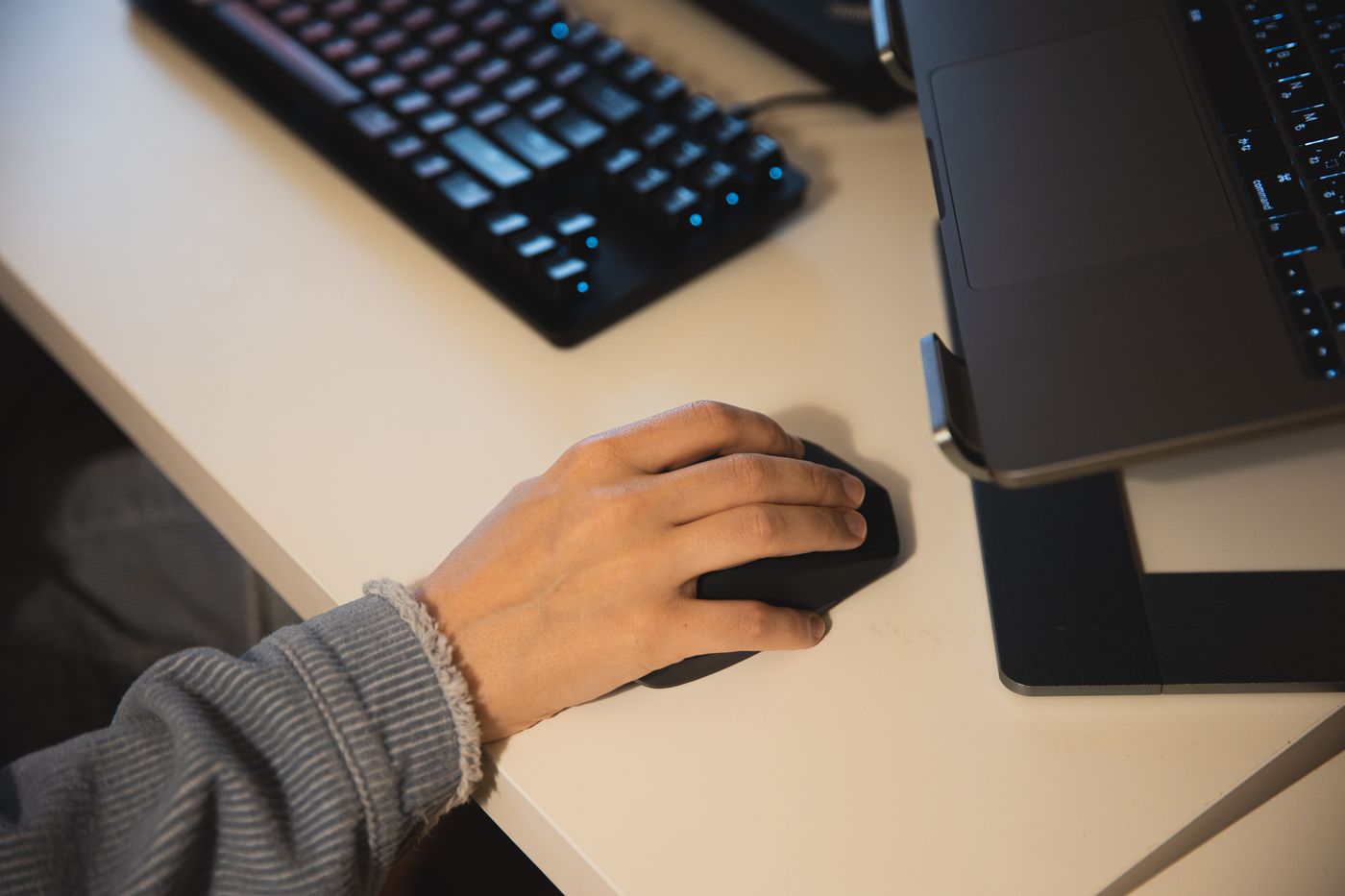
Reconnect or switch on the device according to its instructions and check the functions you normally use. Move the pointer, use the ordinary buttons, and try the wheel on a familiar task. This is a household return check, not a benchmark of accuracy, latency, or improved performance.
If a problem remains, note what happens and consult the manufacturer. Avoid repeating the same cleaning sequence indefinitely because it is the only action currently available. A useful record identifies the model, the permitted care already completed, and the remaining symptom. That makes an appropriate support request clearer.
Keep adjacent desk equipment on its own care path
A keyboard may sit beside the mouse while having different openings, controls, and instructions. The Pebble Keys keyboard review addresses a particular keyboard’s use and storage, but it does not turn the keyboard and mouse into one cleaning object. Identify and care for each device separately.
Keep cleaning products and cloths in an appropriate destination after the task. A wet cloth left on the desk can create another care problem for furniture or equipment. If the same household cloth serves several surfaces, ensure its condition and use remain appropriate to the next task rather than assuming any soft fabric is ready for electronics.
Repeat only the care that actual use requires
Inspect the device as part of a realistic desk routine, following its maker’s maintenance recommendations. A shared mouse may need a different household schedule from one used occasionally by a single person. Keep the process based on the device’s instructions and observed condition rather than a fixed internet recipe.
The useful result is a known device whose permitted external care is complete and whose ordinary operation has been checked. You should also know when the remaining problem is wear or troubleshooting rather than dirt. That distinction helps keep a small home office usable without turning routine care into an unnecessary repair experiment.
Explore related decisions in our Cleaning hub.
Sources and editorial scope
- www.houzz.com — primary source
- support.microsoft.com — primary source
- support.logi.com — primary source
Editorial research checked October 24, 2026. Published trend reports are context for these editorial applications, not verified live keyword rankings. Practical household guidance; photographs do not document a tested household or authenticate pictured materials.

